
Home > PowerPoint Tutorials> PowerPoint Certificate Template
Create a certificate template in PowerPoint easily. Follow our step by step instructions to create your own variations.
Why create PowerPoint Certificate Template?
To give ‘Certificate of achievement’ – is one of the most effective ways to reward employees for their efforts. You don’t need to wait for a BIG occasion to say “You did a good job”. You can award a certificate for the best performer of the day or week, and you can see the energy levels of the team soaring almost instantly.
It doesn’t take much effort to create a certificate. Once you create a good template, you can edit the details and generate a new certificate every time you need one. In this article, we will show you how to create a simple certificate template.
1. Create a border for the certificate
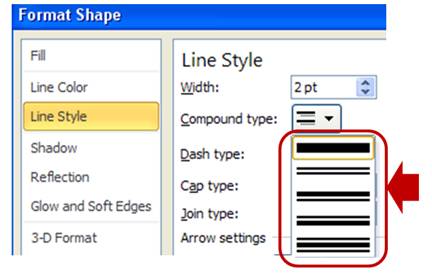
Using Auto shapes menu draw a large rectangle. Remove the fill and have a dark outline as follows:

You can use any ‘line style’you want for the border:
2. Create a title
Add a suitable title for your certificate. The common fonts used are – Monotype Corsiva, Old English Text MT and Impact.
You choose the font depending on the kind of feel you want for the certificate:

Each font style has a different characteristic. Know more about font personality
3. Write the body matter
Keep the text simple. Provide adequate space for the name of the person to be certified. You can leave a blank space if you want to write the name by hand.

4. Create space for date, signature and Logo
Keep the logo at the bottom center. Add date and signature at the corners. This completes the PowerPoint Certificate template:

Related: Interesting Ways to Use Align function
Create variations with different borders and colors:
You can create your own variations for the PowerPoint certificate template border by using simple auto shapes. Stay with the feel that suits you best. Here are some alternatives:
- Use ‘Half frame’ auto shape
Use ‘Half frame’ shape from the auto shapes menu and place them at the four corners of the certificate:

You will get an interesting result that looks like this…

- Use ‘Pie’ auto shape
You can use ‘Pie’ shape from auto shapes menu to create some interesting variations:

Take a look at the resultant certificate here:

- Use ‘Block arc’ shape
You can use ‘Block arc’ shape from auto shapes menu:

See the result here:

Try playing around with different shapes till you are happy with the result. You can search online and get some more inspiration for certificate templates.
Related: How to Create A PowerPoint Blackboard
Quick note: You can find all of the above certificates in a ready to use format in PowerPoint Graphics and Concepts CEO Pack 2.
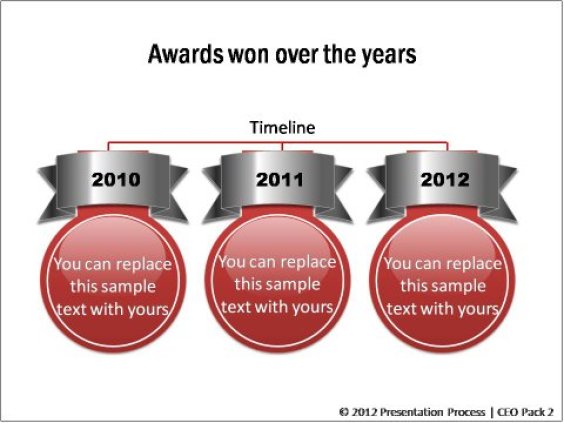
Here are a few related templates you can find the pack. This includes award templates, podiums and more to announce winners…


The pack has 815+ fully editable templates that you can use to take your business presentations to the next level. Having ready access to good templates is a sure fire way to reduce the time for creating presentations and increasing the effectiveness of your message. But, not all business presenters have the time to create diagram templates and store them in their slide library.
Know More about PowerPoint Graphics CEO Pack 2
If you are a business presenter, the diagram templates are an essential investment to improve your presentation effectiveness. Please browse through our diagrams collection and see how the pack can change the way you create business presentations forever – NOW.
Related: Projector Screen Tutorial