
Home > PowerPoint 2007 Tutorials > PowerPoint Cylinder
Discover a simple way to draw hollow cylinder in 3D in PowerPoint. It is better than the regular cylinder in the shapes menu as this can be customized in many ways.
This PowerPoint Cylinder tutorial is for:
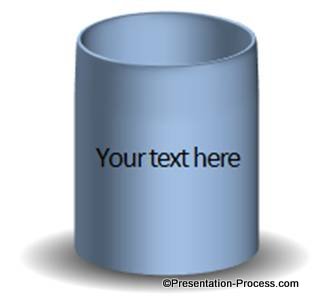
The ‘3D can’ looks realistic with its lights and shades. The diagram is as useful as it is beautiful.
Where to use 3D cylinder?
A hollow cylinder is a metaphor for information or data reservoir. Take a look at the following two examples where we used the cylinder diagram in a conceptual way:
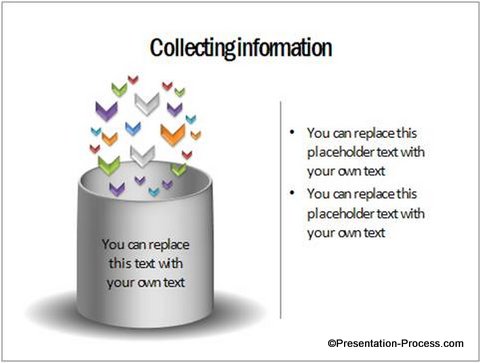
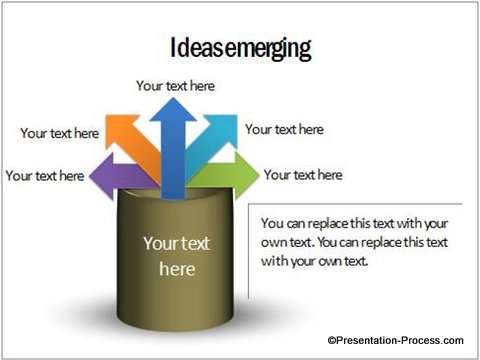
You can use the diagram to represent ideas like:
- Information collection
- Sorting of data into buckets
- Origination of ideas from a core concept etc.
Let us learn to draw the diagram in a step by step way:
Step 1: Draw a circle and give it a 3D perspective
Go to Auto shapes. Use ‘Oval’ tool to draw a circle while holding the ‘Shift’ button. In this example, we drew a circle with the height and width as 2.5” each.

Right click on the circle. Go to Format Shape -> 3D rotation -> Presets ->Off axis 1 Top.
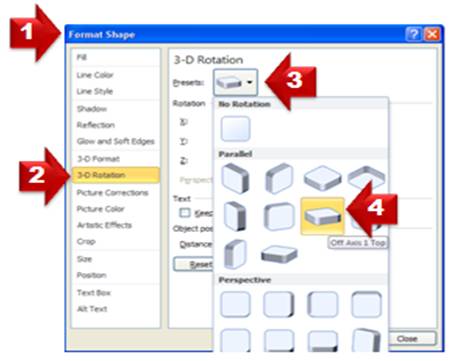
The circle gets transformed into a disc as follows:

Step 2: Apply bevel effect
Right click on the shape. Go to Format shape -> 3D format -> Top -> Slope.
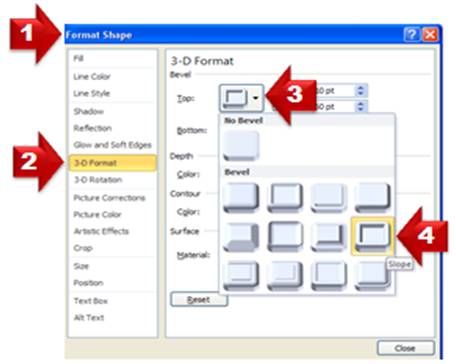
The result is this attracitve 3D disc:

Related: PowerPoint Circle for Base in Diagrams
Step 3: Give it depth
Now that you have applied bevel effect to the ‘Top’ portion of your cylinder, it is time to make the cylinder hollow. For this, enter the following values for ‘Top’:
Width = 10Pt and Height = 60Pt. Enter Depth = 150Pt.
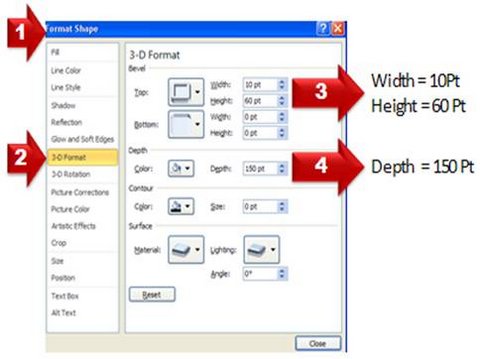
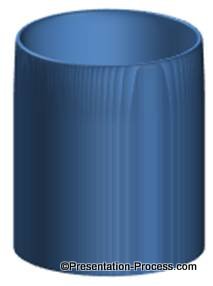
Your hollow cylinder should look like this:
Change the colors of the fill and outline to suit your specific needs. You can add appropriate shadows to give the shapes a more realistic feel:
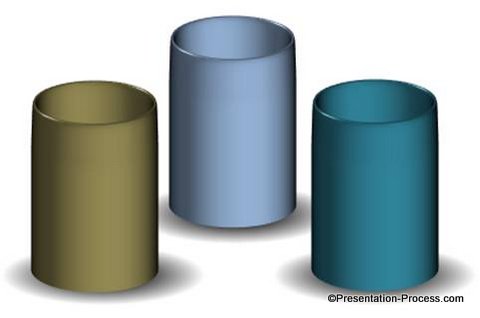
Now let your imagination guide you to create your own set of diagram templates.
Variations in Using Cylinders with Concepts:
We wish to show you some interesting options in Cylinders that help you convey your ideas and concepts accurately. The following diagram templates are part of our ‘750+ PowerPoint Charts & Diagram templates pack for CEOs:
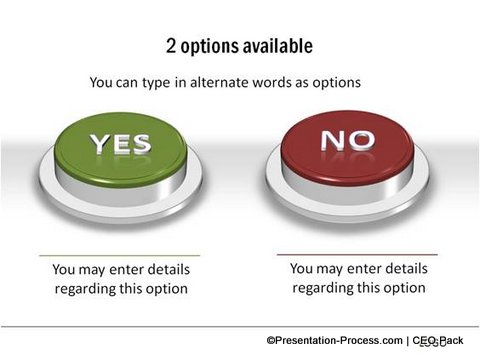
Source: Pros and Cons Section of CEO Pack
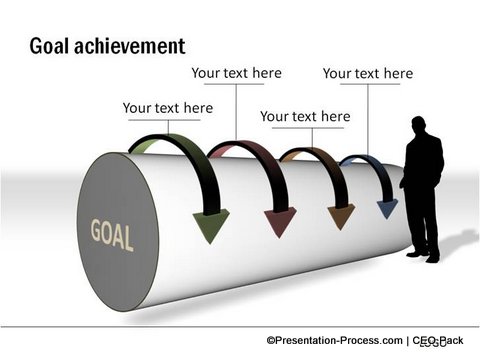
Source: Goals from PowerPoint CEO Pack
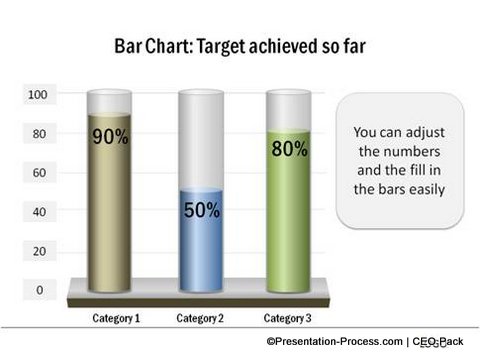
Source: PowerPoint Cylinders – Editable Charts from CEO Pack
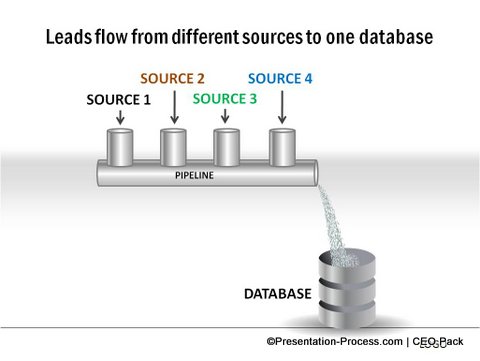
Source: Sales Concepts from CEO Pack
Hope you found the tutorial and creative suggestions useful!
Related: 3D Box with Cardboard texture
Related: 3D Cylindrical Thermometer Charts
Return to Top of PowerPoint Cylinder Page