
Home > PowerPoint Tutorials > Special Effects > PowerPoint Image
Discover a useful technique to highlight certain portions of your image in PowerPoint. Guide your audience attention with purpose in 2 easy steps in PowerPoint 2010.
Context of highlighting pictures:
We all know the importance of using relevant images in PowerPoint presentations. But, sometimes the key details in an image may not be immediately apparent to the audience. In such cases, it is essential to draw their attention to the important portions of your picture.
In this article, you will learn to create a focused highlight on certain areas of your photos in 2 easy steps.
See the difference in the following two images. Which one highlights the humming bird better?
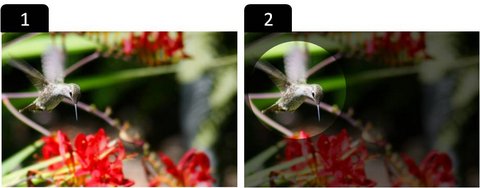 Naturally the second option guides your audience attention easily. Let us learn how to create this effect in a step by step way:
Step 1: Darken the image with an overlay
Go to Auto shapes menu. Using ‘Rectangle’ tool, draw a rectangle that matches the exact size of the photo. Remove the outline by using Format Shape> Line Color> No Line option.
Next, fill it with black color. Right click on the rectangle -> Format shape ->Set transparency to 40%. You will get the following result:
 Related: Creating a beautiful PowerPoint Picture frame – read article here >>
Step 2: Punch a hole where you want the focus
To punch a hole, follow these steps:
- Draw a circle over the area you want to highlight.
- Select the rectangle first and select the circle while holding the Shift key. Press ‘Shape subtract’ option.
- A circular hole is created on the semi-transparent layer and you will get the following result:
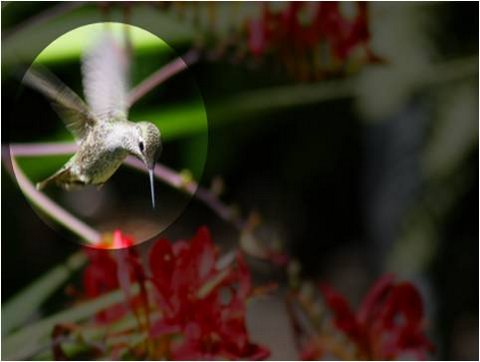 Voila! Now you have your key area highlighted. It is that simple to follow this technique.
Quick Note :
Shape subtract option needs to be set up in your quick access toolbar. See how here.
For a more on how to subtract shapes and create artistic picture effects, see tutorial here.
| Free E-Course from Presentation Process Learn 29 different creative ideas including ways to present your pictures better by enrolling for the free 5 day e-course here. |
Take the technique to the next level:
You can guide your audience attention in stages, instead of showing the highlighted image right away. Follow these steps:
Select the overlaying shape. Go to Animations -> Custom Animation -> Entrance ->On click-> Fade -> Very slow speed.
When you put up the slide show, your audience will see the regular image. When you click, the image darkens, leaving just the highlighted portion in bright focus. The effect is truly remarkable. Try this in your next presentation and see the impact for yourself.
Related: Top 5 ways to irritate your audience with animation
Some interesting ways to use images in your slides:
We wish to show you some interesting ways to use PowerPoint images in your slides. The following diagram templates are part of our ‘750+ PowerPoint Charts & Diagram templates pack for CEOs’.



Source: PowerPoint Text Boxes with Image from CEO Pack
The images in our diagram templates can be easily replaced using ‘Change Picture’ option. The images are laid out professionally keeping business audience in mind. These templates help you convey a visual story with impact.
You can also find more articles and tutorials on how to present your PowerPoint Images better.
Related:5 Ways to highlight text in PowerPoint