
Discover a step-by-step process for crafting a PowerPoint funnel diagram. This versatile diagram can be easily customized to suit your specific needs, allowing you to adjust the number of layers to your liking.
The funnel diagram is a staple of presentations as it is an ideal way to visually represent a wide range of concepts and ideas. With our easy-to-follow guide, you'll be able to create professional-quality funnel diagrams in no time.
Take a look at the beautiful funnel diagram you’ll learn to make today:

What you need for drawing a PowerPoint funnel:
Though the diagram looks complex, you need just 3 shapes to draw this diagram. They are ellipses (8), Trapeziums (3) and a rectangle (1).

Step 1: Getting the shapes in order
Draw 3 trapeziums using the Flowchart: Manual Operation option in Auto Shapes.

Then, draw 8 elliptical shapes and one rectangle from the auto shape option.
Fill the ellipses with white and leave the remaining shapes as transparent. This makes it easy for you to align the objects.
Place the elements in the order shown in the following PowerPoint diagram:

For best results, ensure that the trapeziums are proportioned correctly and that the length of the ellipses matches the two edges of each trapezium.

Now, in the rest of this PowerPoint Tutorial, you’ll learn to color this structure to make it look professional.
Step 2: Shading one layer of the funnel
First select and group the bigger ellipse and the trapezium.

Then, Fill color in the smaller ellipse with ‘Darker 25%’ of any color of your choice. We chose to use Dark Blue, Text 2 and Darker 25%.

Now it is time to color the grouped ellipse and trapezium.

Right click the group and go to ‘Format shape’ option. In that select the gradient fill and choose Moss preset.

Once you select the preset, make sure that the type is linear and the direction of Gradient Fill is chosen as Linear Right.
Now, you are ready to choose your gradient fill colors.Go to Stop Position 1 and change the color to Darker 25% of your choice. In this PowerPoint Tutorial, we chose Dark Blue, Text 2 and Darker 25%.

In the same gradient fill option, Stop Position 2, choose a Lighter 40% color. You may also like to see this tutorial on how to use simple gradient shading to make your elements appear 3D.
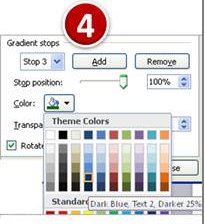
Finally in the Gradient Stop position 3 of the gradient choose Darker 25% again. Remove the outline for both the ellipses and the trapezium. Repeat the process for the remaining layers as well.
Step 3: Shading the stalk of the funnel
- To shade the stalk of the funnel, select the same Moss preset.
- For Stop 1, choose Black, Text 1, Lighter 50%.
- For Stop 2, choose White, Background 1, Darker 50%.
- For Stop 3, choose Black, Text 1, Lighter 50% again.

You may like to read the simple filter diagram tutorial here >>
Step 4: Finishing the funnel
The funnel is pretty much ready now and you may draw 3 downward arrows to indicate input into the funnel.
If you’d followed the PowerPoint Tutorial so far, you can create a PowerPoint slide with funnel that looks like this:

Variations of Funnel Diagrams
When you learn how to create the funnel with right shading, you can make your own variations. Here are some variations from PowerPoint Charts & Diagrams CEO Pack:

Source: PowerPoint Funnel Diagrams from CEO pack
As a busy presenter, you understand the value of time and the importance of creating visually stunning presentations. That's why we offer a pack of 750 ready-to-use templates that can help you save time and elevate your presentations to the next level.
With our CEO Pack, you'll have access to a variety of professionally designed templates that are easy to customize and tailor to your specific needs. Whether you're presenting to clients, colleagues, or investors, our templates will help you deliver a polished and impactful presentation every time.
Don't waste any more time struggling to create presentations from scratch. Let our CEO Pack do the heavy lifting for you. Click here to learn more about how our templates can help you save time and create beautiful presentations.
I hope that you have gained some valuable insights on how to effectively incorporate PowerPoint funnel diagrams into your presentations to enhance the impact and memorability of your message.
Related: Tutorial to create PowerPoint Cone