
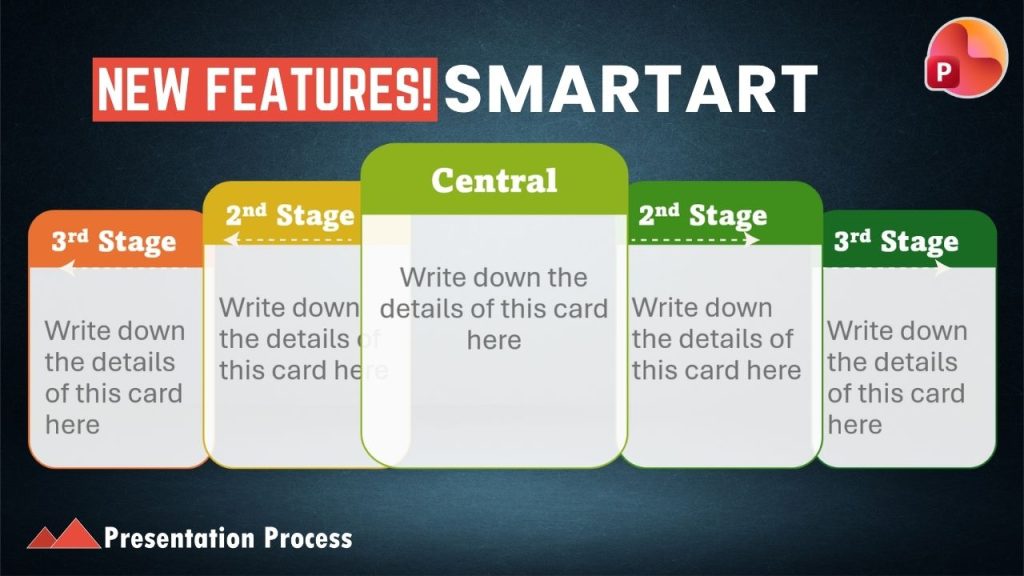
PowerPoint’s SmartArt graphics have been around for years—but they are now overused and look dated.
That’s changing.
Microsoft has added new SmartArt graphics, new categories, and some useful improvements to how you work with SmartArt. The newer designs are more modern and can make it much easier to turn ordinary text into visually engaging slides.
Here are some of the changes worth knowing about.
1. New SmartArt Categories
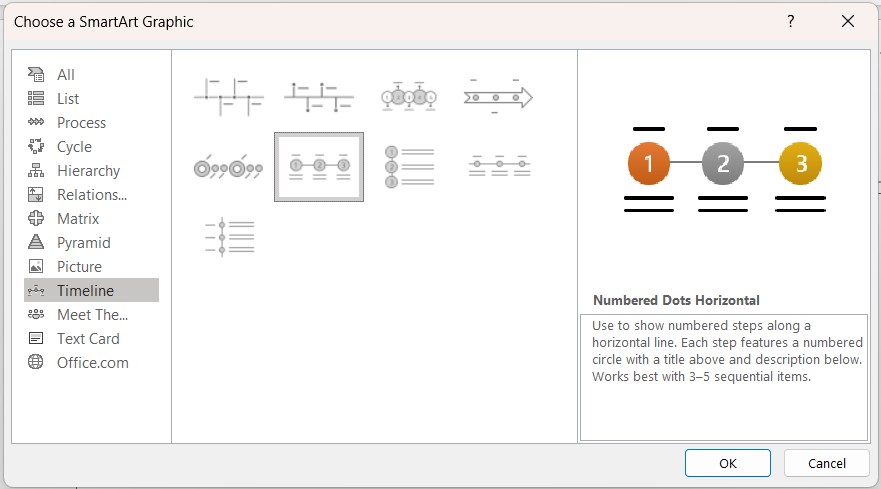
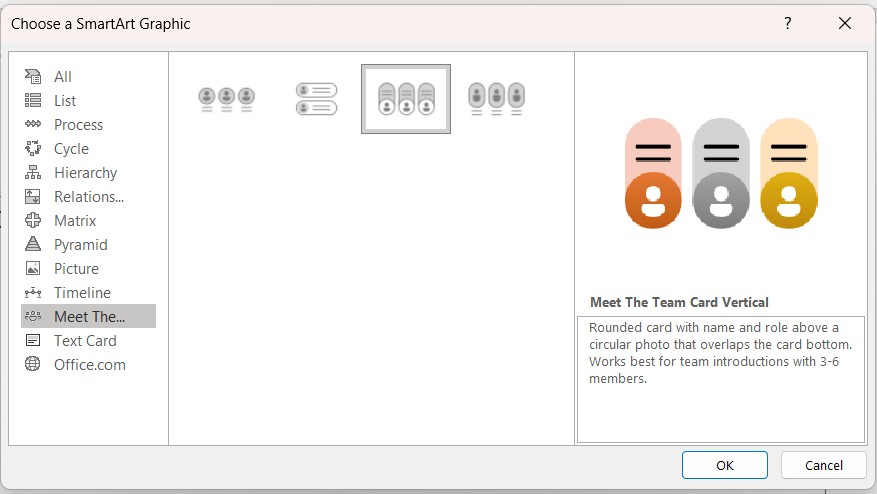
One of the most noticeable changes is the addition of new categories, including Timeline, Meet the Team, and Text Cards.
The Timeline category includes several new layouts for showing events, milestones, or stages over time.
The Meet the Team layouts are useful when introducing people. You can replace the placeholders with photographs of your team members and quickly create a more visual introduction slide.
The new Text Cards category is particularly useful for presenters.
Instead of putting four ideas into a traditional bullet list, you can turn them into individual visual cards.
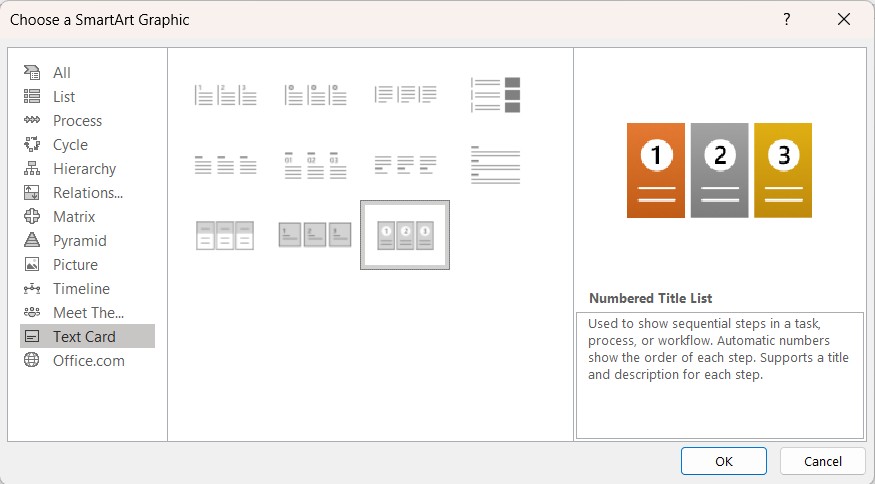
This is one of the easiest ways to make an otherwise text-heavy slide more engaging.
2. More Modern Picture-Based Graphics
Microsoft has also added new designs under existing categories.
For example, the Picture category now includes additional layouts that combine text and images in more contemporary ways.
Overall, the newer designs feel considerably more modern than many of the older SmartArt options.
3. Convert Existing Text into SmartArt
You don't have to start from scratch.
If you already have a slide containing text, select the text, right-click, and choose:
Convert to SmartArt → More SmartArt Graphics
This gives you access to the complete collection of available layouts.
For example, if you have four key ideas with a subtitle and explanation for each, a Text Card layout can instantly transform the slide into something much more presentable.
4. Adding and Reordering Items Is Easier
There are also some useful improvements when editing SmartArt.
You can now easily add another item using the + buttons that appear beside the SmartArt graphic.
PowerPoint automatically adjusts the numbering and layout as you add new items.
Even better, you can easily move items from one position to another without having to duplicate the graphic and manually rearrange everything.
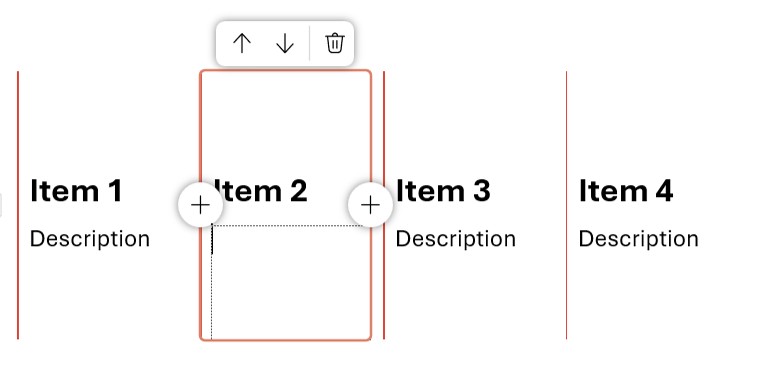
This makes editing a SmartArt graphic much less cumbersome.
5. You Have More Control Over SmartArt Animations
SmartArt has always supported animation, but you can do much more with it than many presenters realize.
For example, you can animate a timeline one level at a time, revealing each event as you talk about it.
You can also use the Animation Pane to control the exact sequence.
For example, you might want the main line to appear immediately, followed by the subtitle, circle, and explanation together.
By changing animation settings between On Click, With Previous, and After Previous, you can create a much more deliberate storytelling sequence.
This is particularly useful when you don't want the entire SmartArt graphic to appear at once.
Related: SmartArt features you never knew
6. And You Can Still Break SmartArt Apart
Here's another useful feature: SmartArt doesn't have to remain SmartArt.
You can ungroup it twice to turn the graphic into individual PowerPoint objects.
Once you've done that, you can change individual colors, edit shapes, resize elements, or completely redesign the graphic.
For example, a rectangle can be changed into a rounded rectangle using:
Shape Format → Edit Shape → Change Shape
One important limitation: ungrouping removes the SmartArt's animation, so do this only after you're finished with the SmartArt-based animation.
SmartArt Is More Useful Than You Might Think
These updates make SmartArt worth revisiting if you haven't used it recently.
The new graphics are more contemporary, the new categories provide more useful starting points, and the improved editing and animation controls give you considerably more flexibility.
And SmartArt can be customized far beyond the default designs.
If you want to go deeper, we've put together a complete SmartArt Mastery course as part of our PowerPoint Mastery program, covering advanced ways to customize and use SmartArt.