
Home > PowerPoint Tutorials > Smart Art > PowerPoint SmartArt Features
PowerPoint SmartArt is far smarter than you imagine. Discover 5 lesser known features of the tool that can surprise your audience.
Most of us don’t fully leverage the power of this in-built tool in PowerPoint. We tend to be content with the default options available. If we dig a little deeper, we can discover some invaluable features that can enhance the look and feel of our diagrams to a whole new level.
Let’s take one ‘usual’ diagram and explore the difference created by the less known features.
1: Use the power of ‘Change Shape’ option
Smart Art provides you the option to right click on any shape and ‘Change shape’. Here is an example of how the option makes a diagram relevant to your idea:
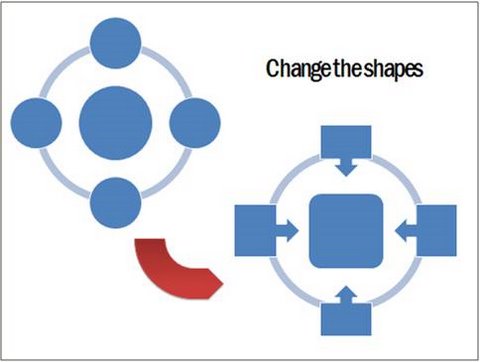
In the above case, the idea we wanted to convey was – ‘Four factors surrounding the issue contribute to the issue’.
The default diagram on the left wasn’t able to convey the idea clearly. So, we changed the shapes of the four circles on the rim to ‘Arrow callouts’. We changed the circle in the middle to a rounded rectangle to fit more text (to describe the issue better). Voila! We got a diagram that conveys our idea beautifully.
Use ‘Change shape’ option for your diagrams. You’ll find a better way to communicate your ideas effectively.
Related: Shortcut to PowerPoint Diagrams to communicate better
2: Add bevel to improve the look and feel of your diagrams
Most presenters are not aware that they can significantly improve the look and feel of their diagrams by adding different types of bevels to the shapes.
Take a look at the difference the option makes to the same template:
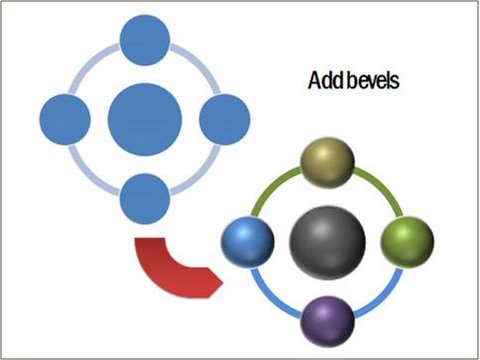
The diagram on the right looks far more elegant than the one on the left. Experiment with bevel option for your diagrams and surprise yourself.
3: Use full range of 3D format and 3D rotation options:
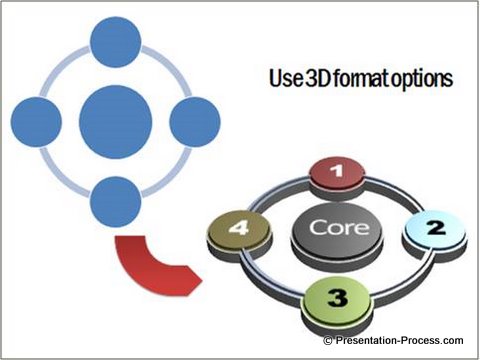
The diagram on the left is the default option. The one on the right is created by playing around with the 3D formatting options. It is almost impossible to believe that such stunning results can be achieved by experimenting with the various features available with the tool.
If you liked these professional effects…
You can find more ready to use preformatted diagrams and concepts in our PowerPoint CEO Pack Volume 2.
The pack has 815+ templates that you can just copy and paste into your presentations.
You can find the 3D Cycle diagram illustrated above and many other unique circular process diagrams without the limitations of SmartArt here >>
4: Fill shapes with pictures
Many presenters believe that they can fill pictures in a shape only when it is indicated with a ‘picture icon’. Realize that a shape is a shape in PowerPoint SmartArt. You can use ‘Shape fill’ option and choose ‘Fill picture’ instead of fill color. You can remove the text on the shape by pressing space bar one time.
The above feature becomes even more useful when you add or delete shapes by pressing enter in the text pane option. See the following example to understand the point better:

In the above example, we added few more circles on the rim by pressing enter in the text pane. We then used ‘Shape fill’ option to fill relevant images inside the shapes.
This simple option opens up whole new possibilities for your diagrams.
Related: Avoid common issues in inserting pictures in SmartArt
5: Add step wise custom animation
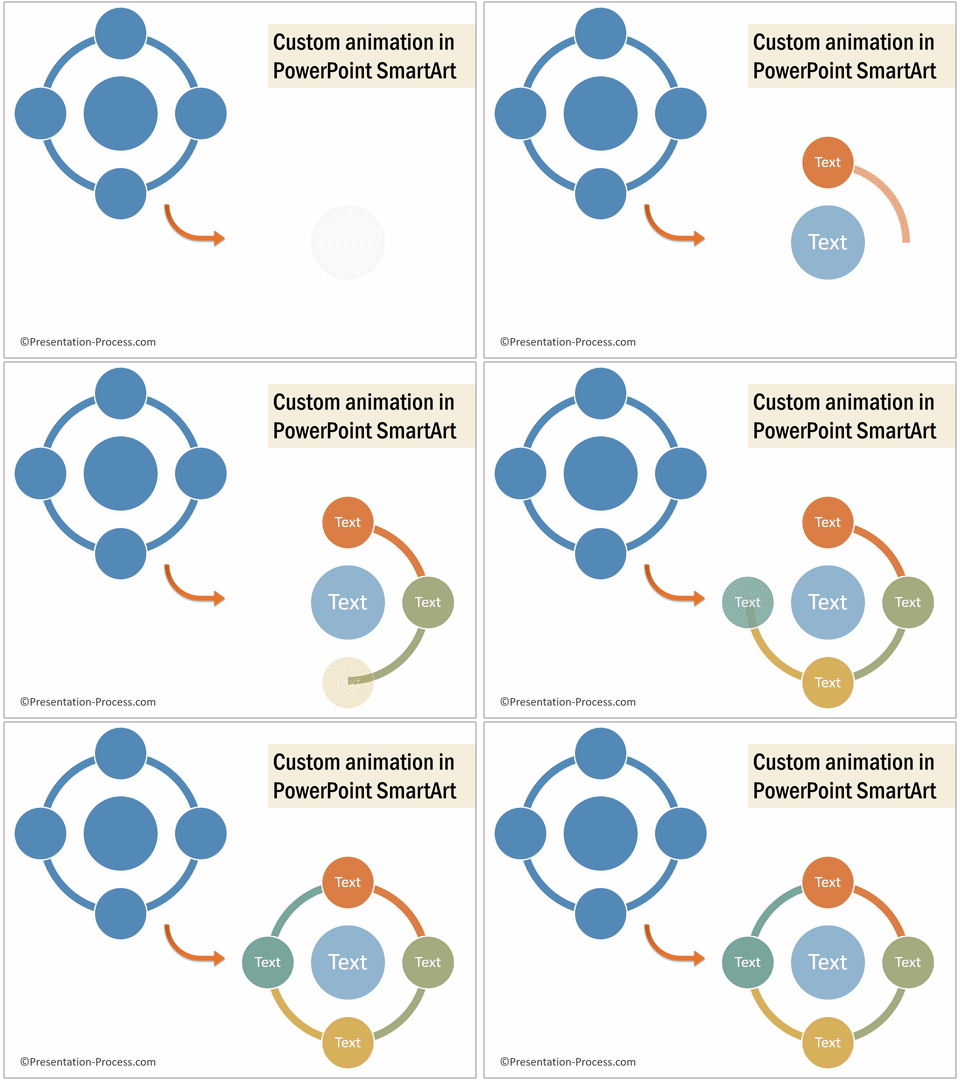
Last but not the least, you can add custom animation to SmartArt and make your message come out stronger. Take a look at the example below:
You can use spin animation to the ‘Gear’ SmartArt or Wedge animation to ‘Circle arrow process’. The possibilities are endless.
Read: Creating Spin Animation in PowerPoint
Conclusion about using PowerPoint SmartArt:
The 5 features we discussed above will help you get your message across more effectively with SmartArt Diagrams. They make your slides look more attractive.
SmartArt to one way to quickly make your slides more visual. You can spend the spend the time to create the SmartArt effects and animations yourself…OR
If you are looking for a quick solution…
You can get a pack of ready to use 146 Prebuilt SmartArt Graphic Templates in a pack. This is every SmartArt available in PowerPoint with examples, effects and subtle animations.

Hope you find these SmartArt tips & tricks useful for your next presentation!
Related: Create Animated 3D PowerPoint Scales
Related: Ultimate Guide to PowerPoint SmartArt Tutorials
Return to Top of PowerPoint SmartArt Features Page